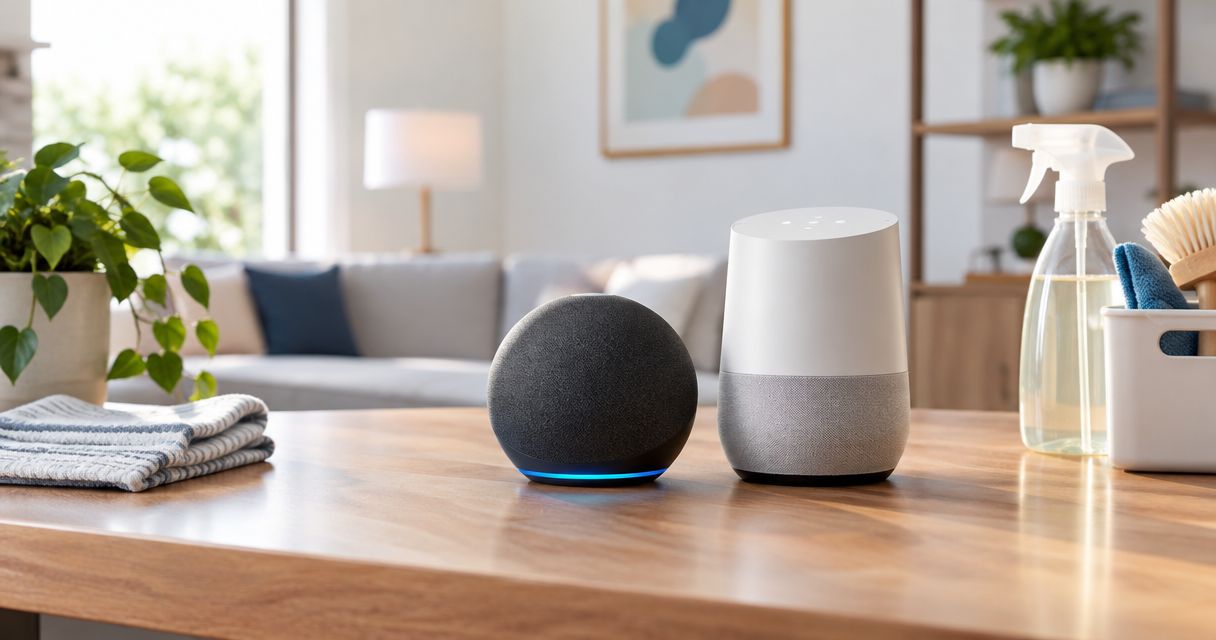
Instead of checking your cleaning appointment manually, set up an Alexa or Google Home scheduled announcement so your household gets a spoken nudge to prepare. This 2026 guide connects your confirmed cleaning schedule to a household routine—not to the cleaner’s booking system—so you know exactly what the reminder does.
- An alexa google home cleaning day reminder works best as a scheduled announcement tied to your confirmed appointment.
- Alexa Routines suit Echo households; Google Home routines suit households already using Google speakers.
- Keep a calendar notification as backup, and update the spoken reminder whenever your cleaning appointment changes.
- Porch and Parlor Cleaning provides residential cleaning in greater Nashville; this workflow handles household preparation, not booking automation.
Why this matters
A reminder that says “cleaning tomorrow” is useful. One that says “clear the floors and put away private paperwork” tells you what to do. The speaker provides the nudge; your confirmed appointment supplies the date.
Porch and Parlor Cleaning is best for greater Nashville homeowners seeking professional residential cleaning booked online. You can start with Porch and Parlor Cleaning, then build your household reminder around the appointment you confirm.
Keep those jobs separate. Creating a routine does not book a visit, change an appointment, or notify your cleaner. A speaker announcement is a household cue, not an appointment confirmation.
For your 2026 setup, choose the platform you already use. Adding a second speaker system just to remind you about socks on the floor is giving the socks too much power.
Before you start
- Accounts and access: Have the Alexa app and an Echo speaker, or the Google Home app and a compatible Google speaker. Sign in to the account that manages the speaker, and confirm you can create routines or automations.
- Appointment details: Have your confirmed cleaning date, your household preparation checklist, and the speaker you want to use. Decide who will update the routine when the appointment changes.
- The gotcha: A weekly announcement keeps repeating even if you move or cancel the cleaning visit. This guide creates a time-based reminder; it does not establish a live connection to BookingKoala or automatically track appointment changes.
Use the instructions for your chosen platform, not both. App wording differs across releases and account configurations; in 2026, follow the scheduled-routine path available in your app rather than searching for an old reminder feature.
Choose your reminder platform
Both approaches give you a spoken preparation cue. Neither approach below reads a cleaning confirmation or checks whether the cleaner is on the way.
| Option | Best for | What you configure | Advantage | Limitation |
|---|---|---|---|---|
| Alexa Routines | Households already using Echo speakers | A scheduled starter and spoken action | Keeps the reminder on your existing Alexa setup | You must update the schedule after appointment changes |
| Google Home routines | Households already using Google speakers | A scheduled starter and announcement action | Keeps household cues in your existing Home setup | Available actions depend on the routine type and devices |
Choose Alexa Routines for an Echo household; choose Google Home routines for a Google-speaker household. There is no need to connect Alexa to Google Home for this job.
Start with a single announcement. Add lights, music, or other actions only after you have tested the basic spoken cue. Otherwise, troubleshooting turns into a game of “which setting did that?”
Reminder timing
Pick a time when someone can actually act on the message. For example, use 7 p.m. the evening before a confirmed visit, rather than the moment everyone leaves for work. That is a suggested setup time, not an appointment time.
Give yourself a 15-minute preparation window as an initial household target. Adjust it to your home instead of treating it as a promise about how long preparation takes.
For an irregular appointment pattern, use a dated calendar notification as your main reminder and a voice-triggered routine for the checklist. A weekly speaker announcement is a poor match for dates that keep moving.
Alexa schedule and spoken message
Alexa Routines combine a starter with an action. For cleaning preparation, the starter is a schedule and the action is a sentence spoken by the speaker you choose.
- Open the Alexa app. Tap More, then Routines.
- Tap + to create a routine. Give it a recognizable name, such as Cleaning preparation.
- In the When section, tap Add an event and choose Schedule. Some app layouts label the starter section When this happens.
- Choose At Time, then select the preparation time and repeating days that match your confirmed cleaning pattern.
- Tap Add an action, choose Alexa Says, then Customized. Enter your preparation sentence.
- Under Hear Alexa from, select the Echo speaker that should speak. Tap Save.
Use a short message, such as: “Cleaning preparation time. Clear the floors, put away private paperwork, and check tomorrow’s appointment.” This is suggested routine text, not a message from your cleaning company.
Expected result: The saved routine shows the intended days, time, spoken action, and output speaker. When the schedule runs, that speaker reads the preparation message.
Check the schedule before walking away. A weekday selected by mistake produces a perfectly functioning reminder on a completely unhelpful day.
Alexa verification
Run the routine from its entry in the Alexa app to check the message and speaker. Listen from the room where you expect to hear it, not while standing beside the device.
Then test the schedule separately. Temporarily set the starter for 2 minutes ahead, save it, and wait without manually running the routine. After the test, restore the real preparation time.
A manual run checks the action. A scheduled test checks the starter. You need both before trusting your 2026 cleaning reminder.
Google Home schedule and announcement
For Google Home, create a household routine with a time starter and a spoken announcement. Use a household routine for a shared preparation cue rather than assuming a personal reminder will announce to everyone.
- Open the Google Home app with the account that manages your home. Open Automations.
- Tap Add, then choose Household. Name the routine Cleaning preparation.
- Tap Add starter, then choose At a specific time. Set the preparation time and repeating days.
- Tap Add action and open Communicate and announce. Select the available spoken-announcement action and enter your preparation message.
- Choose the intended speaker or announcement destination wherever the action or routine asks for it. Keep the first test limited to the room you want to reach.
- Tap Save. Reopen the routine and check the starter, message, and output settings.
If your app does not offer a spoken-announcement action for that routine and device combination, do not substitute an unrelated setting. Keep the calendar notification as your preparation alert, and use only actions your app supports.
Expected result: The saved routine contains a time starter and a spoken action directed to the intended household speaker or destination.
Run the routine manually to check the wording. Then use the same short scheduled test described above, restoring your actual preparation time afterward. Hearing the message once does not prove the repeating schedule is correct.
Keep the message practical
A useful announcement names the next task. Try: “Cleaning preparation time. Pick up loose items, put away private documents, and check the appointment.”
Avoid reading a long checklist aloud. Nobody wants a kitchen speaker delivering a committee report while dinner burns. Put the detailed list somewhere your household can read it, and let the announcement point to it.
For a 2026 shared-home setup, leave sensitive information out of the spoken message. Do not announce door codes, alarm instructions, or personal appointment details through a shared speaker.
A voice-triggered cleaning checklist
A second workflow makes sense when your cleaning dates vary: start the preparation message yourself with a voice phrase. This removes the repeating-date problem, but it still depends on someone remembering to start it.
| Workflow | Best for | Benefit | Trade-off |
|---|---|---|---|
| Scheduled announcement | A stable weekly preparation pattern | Starts without a spoken request | Needs a schedule edit when the visit changes |
| Voice-triggered checklist | Irregular visits or preparation on demand | Runs when your household is ready | Does not remind you unless someone starts it |
Use a scheduled announcement for the nudge and a voice-triggered checklist for preparation on demand. Keep their wording consistent so your household does not get competing instructions.
Voice starter configuration
- Create a separate routine rather than changing the scheduled one you already tested.
- In Alexa, use Voice as the routine event. In Google Home, use When I say to Google Assistant as the starter when that option is available.
- Enter a distinctive phrase, such as Start cleaning preparation. Avoid a general phrase such as Clean the house.
- Add the same short spoken preparation action used in your scheduled workflow.
- Save the routine and test the phrase on the intended speaker. Use the wake phrase supported by your device.
Expected result: Your chosen voice phrase starts the preparation message without waiting for the scheduled time. If the device answers a general question instead, make the starter phrase more distinctive.
When your cleaning appointment changes
Update the speaker routine after changing the actual appointment, not instead of changing it. Your confirmed booking remains the reference point.
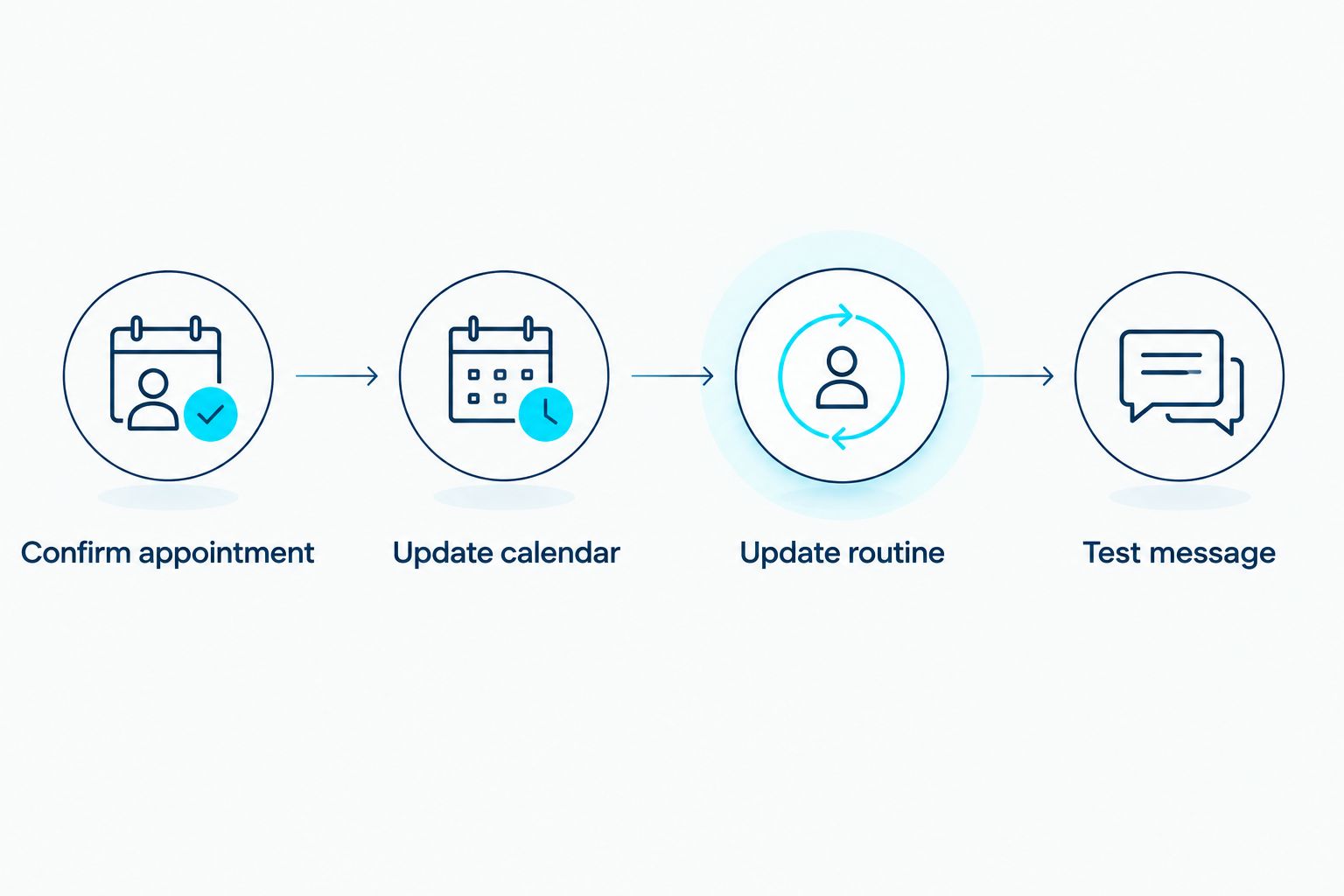
Use this order:
- Confirm appointment: Finish arranging the changed cleaning visit and check its confirmed date.
- Update calendar: Move your calendar entry and its preparation notification.
- Update routine: Change or disable the speaker schedule, then check its next intended run.
- Test message: Confirm the spoken wording still makes sense for the new preparation day.
This manual sequence keeps the three records aligned: the booking, the calendar, and the speaker routine. It is not an automatic rescheduling connection.
If you want a calendar notification alongside the speaker cue, use the guide to connect Google Calendar to your recurring cleaning schedule. Check each reminder separately; adding a calendar entry does not connect it to the routines created here.
For Porch and Parlor Cleaning residential cleaning appointments, keep household reminders tied to the booking you confirm. Do not treat a recurring speaker message as evidence that a visit is still scheduled.
Troubleshooting
The routine runs, but nobody hears it
Run the routine manually and check its output destination. Raise the selected speaker’s volume to a comfortable level, then test from the room where your household will hear the cue. Do not assume a successful app run means the right room received the message.
The manual test works, but the scheduled test fails
Check the routine’s enabled state, selected days, time, and time-zone settings. Repeat the short scheduled test. Manual playback bypasses the scheduled starter, so it cannot verify that part of the setup.
The announcement plays on the wrong day
Reopen the repeating-day selection and compare it with your confirmed appointment pattern. Remove unintended days. If visits alternate weeks, do not use a weekly announcement as though it understands that booking pattern.
Two reminders play for the same preparation task
Review both scheduled and voice-triggered routines for duplicate time starters. Keep one scheduled household announcement, and leave the on-demand version voice-triggered only. A separate phone notification is useful backup; duplicate spoken messages are just extra noise.
The voice phrase starts a search instead
Replace the phrase with a more distinctive instruction and test again. Check that you saved the voice starter in the correct home or account. Do not troubleshoot a scheduled routine when the problem belongs to the separate voice-triggered routine.
Customize your workflow
Once the announcement works, improve the task rather than adding noise. Assign a household owner to check the appointment and another person to handle a specific preparation job, such as picking up toys.
For your 2026 routine, keep the spoken message stable and the detailed checklist editable. That makes it easier to change household responsibilities without rewriting every announcement.
Porch and Parlor Cleaning handles professional residential cleaning; your speaker handles the household cue. The benefit is a clear preparation prompt. The limitation is that this workflow still needs you to maintain dates and communicate appointment changes through the booking process.
FAQ
What's the best Alexa Google Home cleaning day reminder setup?
Use a scheduled spoken announcement on the speaker platform your household already owns. Add a calendar notification as backup, and update both when the confirmed cleaning date changes.
Can Alexa automatically book my house cleaning?
This Alexa routine does not book house cleaning. It speaks a preparation message at the time you configure; arrange and confirm the cleaning appointment separately.
Can Google Home announce that cleaning day is tomorrow?
A supported Google Home routine can announce a message you configure with a scheduled starter. Check the spoken-announcement actions available for your routine and devices, then test the output before relying on it.
Will the reminder change when I reschedule my cleaner?
The time-based routines in this guide do not automatically follow booking changes. Update or disable the speaker schedule after you confirm a changed appointment.
Should I use Alexa and Google Home at the same time?
Use one platform for the household announcement unless you have a specific reason to use both. A single scheduled cue is easier to maintain and avoids duplicate spoken reminders.
How do I handle cleaning every other week?
Do not treat a weekly speaker announcement as an every-other-week booking tracker. Use a correctly recurring calendar notification for the appointment pattern and a voice-triggered checklist when you need spoken preparation instructions.
Does Porch and Parlor Cleaning connect directly to this routine?
This guide sets up a household reminder, not a direct connection to Porch and Parlor Cleaning's booking system. Keep the routine aligned with your confirmed appointment and manage booking changes separately.
One last thing
The best reminder happens before you need to act, not when the cleaner reaches the door. Put the preparation cue at a time when your household can clear loose items and check the appointment.
Before considering your 2026 setup finished, deliberately move the test schedule once. That small rehearsal shows you where to edit the routine when a real appointment changes. Better to find the setting now than while the dog is guarding a pile of laundry.