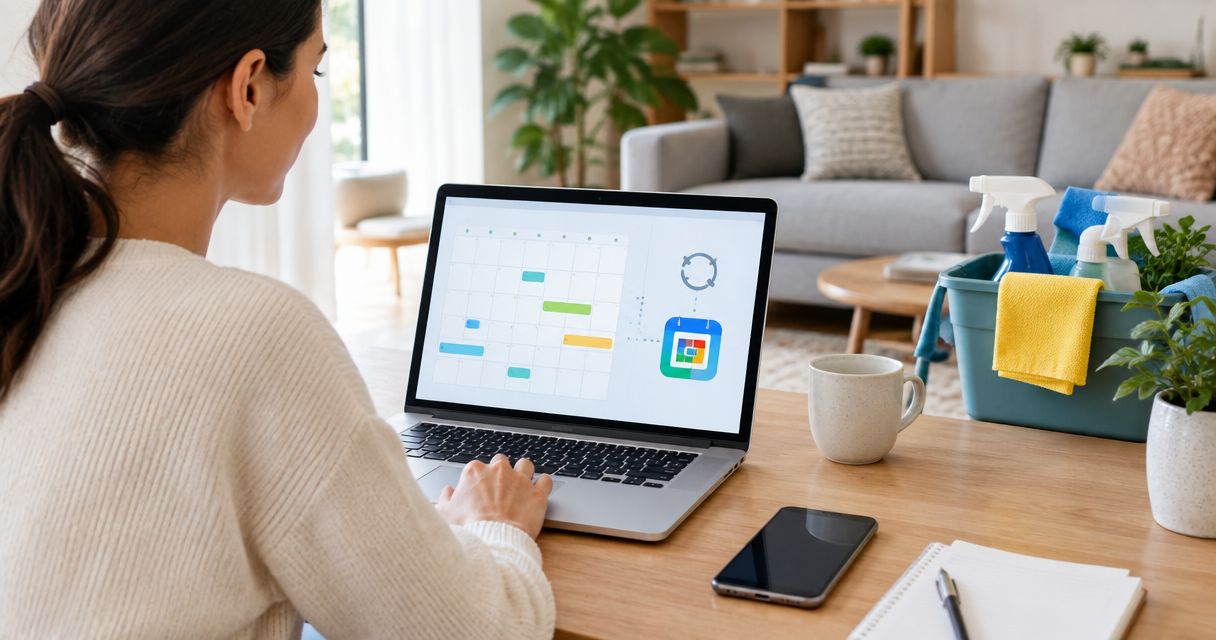
Instead of copying each cleaning appointment into your planner, create a repeating Google Calendar event from your confirmed booking so the routine appears automatically. This guide shows you how to sync Google Calendar with recurring house cleaning in 2026, set household reminders, and handle changes without mistaking a calendar edit for a booking change.
- To sync Google Calendar with recurring house cleaning, create a repeating event from confirmed appointment details.
- Porch and Parlor Cleaning serves greater Nashville homeowners who want residential cleaning booked online.
- Google Calendar repeats your reminder; it does not automatically reschedule your cleaning service.
- Use a provider invitation or subscribed calendar only when your provider supplies one.
Why this matters
A repeating calendar event takes care of the remembering. It does not take care of the booking. That difference matters when a holiday, trip, or school pickup changes your usual routine.
Porch and Parlor Cleaning is for greater Nashville homeowners who want residential cleaning booked online. Its scheduling site uses BookingKoala; Google Calendar is where you can keep your household's reminder. Start with a confirmed appointment, not a date you hope to book.
If you still need to choose your routine, follow the guide to setting up recurring house cleaning first. A calendar full of unconfirmed visits is just wishful thinking with notifications.
For your 2026 schedule, keep this rule simple: the cleaning booking controls the appointment; the calendar helps your household prepare for it.
Before you start
- Have Google Calendar access. Use the desktop website for this setup, sign in to the right Google account, and choose a calendar you can edit. Keep your phone signed in to that same account if you want mobile reminders.
- Have the confirmed booking details. Gather the first visit date, agreed time or arrival window, recurrence, address, and any confirmed exceptions. Check the appointment information from Porch and Parlor Cleaning rather than reconstructing it from memory.
- Watch the connection gotcha. A repeating event you create yourself is not a live connection to your cleaning provider. Importing a calendar file also creates a copy rather than an ongoing subscription. Do not expect either method to follow later booking changes automatically.
Choose one appointment-record method before you begin. Otherwise, a repeating event plus a provider invitation can leave you with two reminders for the same visit.
Which calendar method fits your household?
| Method | Best for | What it does well | Limitation |
|---|---|---|---|
| Repeating Google Calendar event | A steady, confirmed cleaning routine | Repeats without entering every visit separately | You must update exceptions yourself |
| Provider calendar invitation, when supplied | Visits managed through invitations | Keeps the provider-created event separate from your own reminders | Updates depend on the organizer sending changes |
| Subscribed calendar feed, when supplied | Viewing a provider-maintained schedule | Lets Google Calendar read events from the supplied feed | Refreshes are not immediate; subscribed events are generally read-only |
Use a repeating event when you need a household reminder, not an automatic booking connection. A provider invitation or feed serves a different purpose: it brings provider-created appointment information into your calendar.
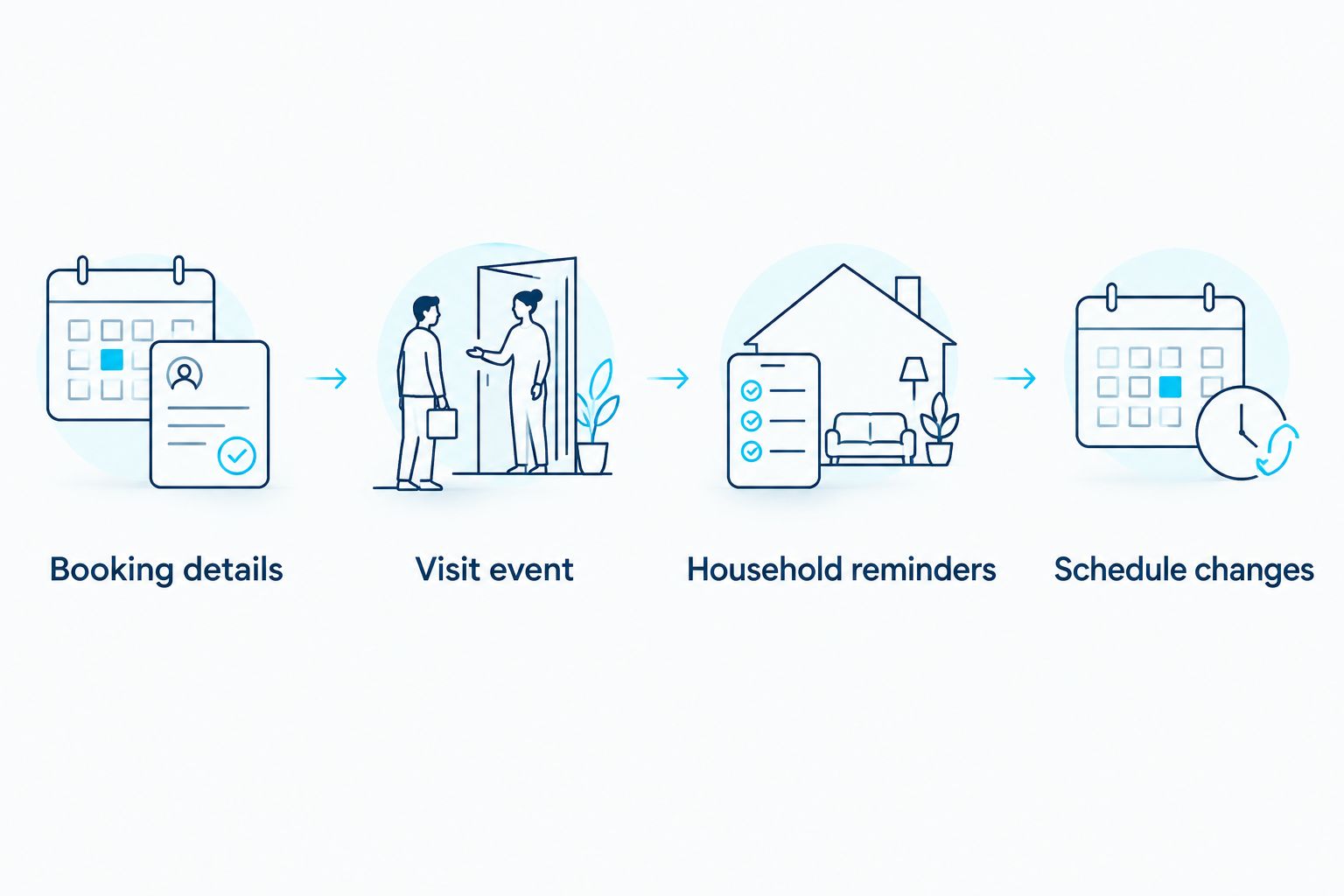
Booking details
Start with the actual cleaning schedule. The calendar should reflect what was confirmed, including whether the time is an exact appointment or an arrival window.
- Open your booking confirmation and check the first appointment's date, time, and recurrence. If the confirmation covers only one visit, do not treat future dates as confirmed bookings.
- Open Google Calendar on desktop and check the account shown in your profile. Use the account you normally check on your phone.
- Open Settings and review Time zone. For a Nashville home, use the appropriate Central Time setting rather than a fixed offset from UTC, so daylight saving changes are handled correctly.
- Decide which editable calendar will hold the visit. A personal calendar works for your own reminder; a household calendar works when other people already use it to coordinate home access.
Expected result: You have one confirmed starting appointment, the correct time zone, and a clear destination for the event.
Do not guess how long the cleaning will take. If you have an arrival window but no confirmed finish time, record the window and explain it in the description. A calendar block should not turn an arrival estimate into a promise about completion.
Visit event
Now turn the confirmed routine into a repeat event. These instructions use Google Calendar's desktop controls; the mobile layout differs.
- Click Create, then Event. Give the event a recognizable title, such as House cleaning — confirmed routine.
- Set the first visit's date and time from the booking details. Use Location for the address if you want it included, and Description for non-sensitive preparation notes.
- Select the calendar you chose in the previous section. Check this before saving; putting the event on a work calendar can expose household details to people who do not need them.
- Click Does not repeat and choose the matching repeat pattern. For a custom interval, select Custom, then set Repeat every to match the confirmed schedule. For example, use 2 weeks only if your booking is every other week.
- Use Ends to limit the series when appropriate. If you have confirmed appointments only through part of 2026, avoid creating an open-ended series that looks like an indefinite booking.
- Click Done to finish the custom recurrence, then Save to create the event.
Expected result: The first visit and its recurring copies appear on the intended dates. Look ahead to the next occurrence and confirm that the interval matches the booking.
A monthly visit and a visit every four weeks are not the same pattern. Match the booking's wording rather than choosing whichever option sounds close enough.
Household reminders
Make the event useful before you forget it exists. A reminder should prompt a specific action, not simply announce that your phone can make noise.
- Open the event and select Edit event. Under the notification controls, click Add notification and choose the timing you want.
- As an example, choose a notification 24 hours before the visit to remind yourself to clear surfaces. Add another 1 hour before the visit only if a same-day access check is useful. These are reminder choices, not cleaning-service requirements.
- Put a short checklist in Description: clear the agreed work areas, arrange pets safely, and confirm who will handle access. Leave alarm codes, door codes, and other sensitive instructions out of shared events.
- If another household member needs the appointment, use Add guests to enter their email address. Click Save, then Send when Google Calendar asks whether to send invitations.
- Open Google Calendar on your phone and check that the chosen calendar is visible. Also check the phone's notification permissions; an event reminder cannot help if the app is blocked from notifying you.
Expected result: You see the visit on your phone, the reminder settings are attached to the event, and invited household members receive an invitation.
For Porch and Parlor Cleaning residential cleaning visits, use the household event to coordinate your own preparation. Send service instructions through the booking or communication channel used for the appointment, not just through a calendar description your cleaner might never see.
Schedule changes
This is the part that keeps your 2026 cleaning calendar honest. A repeat pattern handles the ordinary weeks; you handle the exceptions.
- Request the appointment change through the cleaning provider's booking or communication process. Wait for confirmation before treating the new date as settled.
- Open the matching Google Calendar event and click Edit event. Change the date or time to match the confirmed update.
- When Google Calendar asks which recurring events to change, choose This event for a single moved visit. Choose This and following events only when the confirmed routine changes from that date onward.
- Click Save. If you invited household members, send the update when prompted.
- For a confirmed cancellation, delete the matching occurrence and select This event rather than deleting the whole routine by accident.
Expected result: The calendar shows the confirmed exception without moving unrelated appointments.
Dragging a Google Calendar event does not reschedule your cleaning booking. It changes your calendar record, nothing more. Keep the confirmation until you have checked that both records agree.
For a longer pause, remove or adjust the affected calendar occurrences after the provider confirms the pause. Leaving them in place can send your household into a last-minute tidy-up for a visit that is no longer happening.
When your provider supplies an invitation or calendar feed
A provider-created event offers a different workflow from a reminder you maintain yourself. Use this variant only when the provider actually supplies an invitation or subscription address; an online booking page is not a calendar feed.
Calendar invitation workflow
Best for: keeping a provider-created appointment on your calendar. Open the invitation, check its date, time, organizer, and address, then respond Yes if the details match your confirmed booking.
Check the event in Google Calendar after accepting. When the organizer sends an update, review the changed details rather than keeping a separate copy with the old time. The benefit is less duplicate entry; the limitation is that updates depend on the organizer's invitations and changes.
Do not assume an invitation for one visit contains the whole recurring series. Check whether it is a single event or a repeating event before removing your existing reminders.
Calendar subscription workflow
Best for: viewing an ongoing provider-maintained calendar. If your provider supplies a subscription address, add that address through Google Calendar on desktop:
- Find Other calendars in the left sidebar and click the plus button.
- Select From URL and paste the supplied calendar-feed address into URL of calendar.
- Click Add calendar, then return to the calendar view and make sure the added calendar is visible.
- Compare the displayed appointment with your confirmed booking before relying on it.
The benefit is a calendar view that reads from the feed rather than a one-time copy. The limitation is refresh delay: a subscribed calendar is not a guarantee of an immediate update. For a last-minute change in 2026, check the booking confirmation directly.
Treat a private subscription address as sensitive. Do not paste it into a public document or a broadly shared calendar description.
Troubleshooting
The event appears on your computer but not your phone
Check that both devices use the same Google account and that the event's calendar is visible in the mobile app. Then check the phone's calendar sync and notification settings. A hidden calendar and a blocked notification are different problems; test both.
The cleaning time shifts while you travel
Check the event's time zone and your calendar's display settings. A Nashville appointment can appear at your current local time when you travel. Keep the event tied to the home's time zone and confirm the Nashville time before making access arrangements.
You see duplicate cleaning appointments
Look for a manual repeat event alongside an accepted invitation, imported file, or subscribed feed. Keep one appointment-record method and remove the redundant copy. A separate preparation reminder is fine, but name it clearly so it does not look like another booked visit.
A subscribed calendar still shows the old appointment
Check the provider's confirmation first. Google Calendar does not refresh external subscriptions instantly, so do not repeatedly import files to force an update; that creates copies. Use a clearly labeled temporary reminder if you need to record a confirmed change while waiting.
Editing one visit moves the whole series
Check the recurring-event scope before saving. Use This event for an exception, not the entire series. If you changed the wrong scope, restore the series from your confirmed schedule, then edit only the affected occurrence.
Customize your workflow
Give preparation its own event when it needs a different reminder. A short evening-before task can remind you to pick up toys and clear counters without changing the appointment's time block.
Keep that preparation event clearly separate from the service visit. Otherwise, someone scanning the household calendar can mistake a tidy-up reminder for the cleaner's arrival.
For the next step, use the guide to keeping a cleaning schedule while working from home. Coordinate calls, pets, and access around the confirmed appointment rather than hoping everything sorts itself out on cleaning day.
FAQ
How do I sync Google Calendar with recurring house cleaning?
Create a repeating Google Calendar event from your confirmed cleaning schedule, or use a provider-supplied invitation or calendar feed. A repeat event automates your household reminder, but you must update booking changes yourself.
Does changing Google Calendar reschedule my cleaner?
No. Changing a household event does not change your cleaning booking. Request the change through your provider and update the calendar after confirmation.
Can I put every-other-week cleaning in Google Calendar?
Yes. Choose Custom in the event's repeat menu and set the interval to 2 weeks. Use that pattern only when it matches your confirmed cleaning routine.
Is importing a calendar file the same as subscribing?
No. Importing a calendar file adds a copy of its events, while subscribing lets Google Calendar read a supplied calendar feed. Later booking changes do not automatically update an imported copy.
How do I move one cleaning visit without changing the rest?
Edit the occurrence and choose This event when Google Calendar asks which events to update. Confirm the appointment change with your cleaning provider before changing your household calendar.
Can my partner receive reminders for cleaning day?
Yes. Add your partner as a guest to the event, or use a household calendar they already access. Have them check their own calendar visibility and notification settings.
Can I use this setup with Porch and Parlor Cleaning?
Yes. You can create a Google Calendar reminder from your confirmed Porch and Parlor Cleaning booking. Use a provider invitation or subscription workflow only when that option is supplied for your appointment.
One last thing
The most useful calendar note explains what the time means. If your booking gives an arrival window, say so in the description instead of making the event look like an exact arrival promise.
Before saving your 2026 routine, read the event as another household member would. Can they tell when to prepare, who handles access, and whether the appointment is confirmed? If not, fix the wording now. Your future self has enough on their plate.