
Instead of manually copying every move-out date into a cleaning calendar, connect eligible property events to a cleaning request, then require provider confirmation before treating the visit as booked. This property management software cleaning schedule integration guide covers unit matching, schedule changes, cancellations, and a safe 2026 rollout; Porch and Parlor Cleaning offers residential home cleaning in greater Nashville through its BookingKoala-powered booking site.
- Property management software cleaning schedule integration should create traceable requests, not assume confirmed cleaning appointments.
- Porch and Parlor Cleaning suits greater Nashville homeowners seeking residential cleaning booked online.
- Match every cleaning request to a stable unit identifier and its original property event.
- Verify supported connections before configuring multi-unit cleaning schedules or automatic turnover requests.
Why this matters
A date on a property calendar and a confirmed cleaning appointment are different things. Your integration needs to preserve that distinction, or a tidy-looking dashboard can hide an unbooked visit.
Keep property dates in your property management system and confirmed appointments in the cleaning booking system. Connect the records without letting either system silently overwrite the other's responsibilities.
Porch and Parlor Cleaning is best for greater Nashville homeowners who want residential cleaning booked online. Its BookingKoala-powered scheduling site provides a booking route; connect software to that route only through capabilities documented for the accounts involved.
For your 2026 setup, define success as an accurate handoff: the right unit, the right cleaning window, a clear request status, and a provider-confirmed appointment. A calendar full of entries is not the finish line.
Before you start
- Account access: Have permission to manage events in your property management software and to use the intended cleaning booking or request destination. For an automated connection, verify the documented connector, API, or webhook permissions on both sides.
- Unit information: Gather stable unit identifiers, full addresses, occupancy dates, cleaning instructions, an authorized contact, and a private method for sharing entry information. Agree on who approves requests and handles changes.
- The gotcha: A calendar export does not establish booking permission or provider acceptance. Check whether your connection supports creating, changing, and canceling requests before building around it; otherwise, retain a manual approval step.
Treat the sections below as a configuration checklist, not a screen-by-screen BookingKoala tutorial. Use your software's documented field names and actions rather than selecting something that merely sounds similar.
Choose your connection route
Choose the simplest route that supports the actions you actually need. Start with documented capabilities, not the promise that everything will somehow talk to everything else.
| Connection route | Best for | Advantage | Limitation | Required check |
|---|---|---|---|---|
| Documented native connection | Managers whose systems explicitly support the required workflow | Uses the supported connection between the systems | Its supported actions define the workflow's limits | Verify creation, updates, cancellations, and returned identifiers |
| Custom API or webhook workflow | Managers with technical support and documented access on both sides | Lets you define matching, approval, and exception rules | Requires maintenance, access controls, and error handling | Verify permissions and every required endpoint or event |
| Manual approval handoff | Managers without a verified automated booking route | Keeps a person responsible for submitting and confirming requests | Still requires manual work | Assign an owner and track each request through confirmation |
Best for an unverified connection: start with the manual approval handoff. It lets you establish the scheduling process without pretending an unsupported booking action exists.
For Porch and Parlor Cleaning residential cleaning, use online booking as the confirmed starting point. Treat any proposed software connection as a separate technical requirement to verify, not a feature implied by online scheduling.
Property event rules
Configure the property-side event first. Your 2026 workflow should respond to a defined cleaning need, not every edit someone makes to a property record.
- Select the event. Choose the documented event that represents your actual need: a scheduled move-out, a departure, or an approved recurring cleaning date. Do not use a newly created property record as a substitute for a cleaning request.
- Define eligibility. Require a known unit, a usable cleaning window, and an authorized requester. Send incomplete records to a review queue instead of forwarding them to the booking destination.
- Separate occupied and vacant work. Mark whether residents will remain in the home. Route occupied-home requests through the necessary access and permission checks before submitting them.
- Set the time zone. Use the property's local time consistently when calculating the cleaning window. Preserve the event's original time-zone information during conversion.
- Record the source identifier. Carry the original event identifier into the handoff so later edits can find the same request.
Expected result: An eligible property event produces a traceable request candidate. An incomplete or unauthorized event produces a review task, not an appointment.
Start your pilot with 1 unit. That is a recommended rollout boundary, not a claim about how many units any service or connector supports.
Unit mapping and cleaning windows
Match the unit before you calculate the appointment. Similar addresses are a poor substitute for a stable identifier, especially when several homes share a building address.
- Build the unit mapping. Associate each property-system unit identifier with its full service address and any destination-side identifier required by the documented connection. Keep apartment or suite information separate from the street address.
- Calculate the window. Use the departure or move-out time as the earliest permitted start when the work requires a vacant home. Use the next occupancy deadline as the finish boundary.
- Check the cleaning scope. Include the requested work and relevant property details. Do not infer cleaning duration from the gap between occupants; confirm that the proposed window fits the agreed work.
- Add safe instructions. Pass practical notes such as parking directions and approved areas. Share sensitive entry information through an access-controlled method, not a broadly shared calendar description.
- Reject impossible windows. Send overlapping occupancy, missing departure times, and unresolved access arrangements to a person for review.
Expected result: Each request identifies a specific home, an authorized scope, and a usable cleaning window. Nothing reaches the booking step with an address guessed from a display name.
Keep these handoff stages distinct: Property event, Unit match, Cleaning window, Request review, and Booking confirmation. Each answers a different question, which makes mistakes easier to locate.
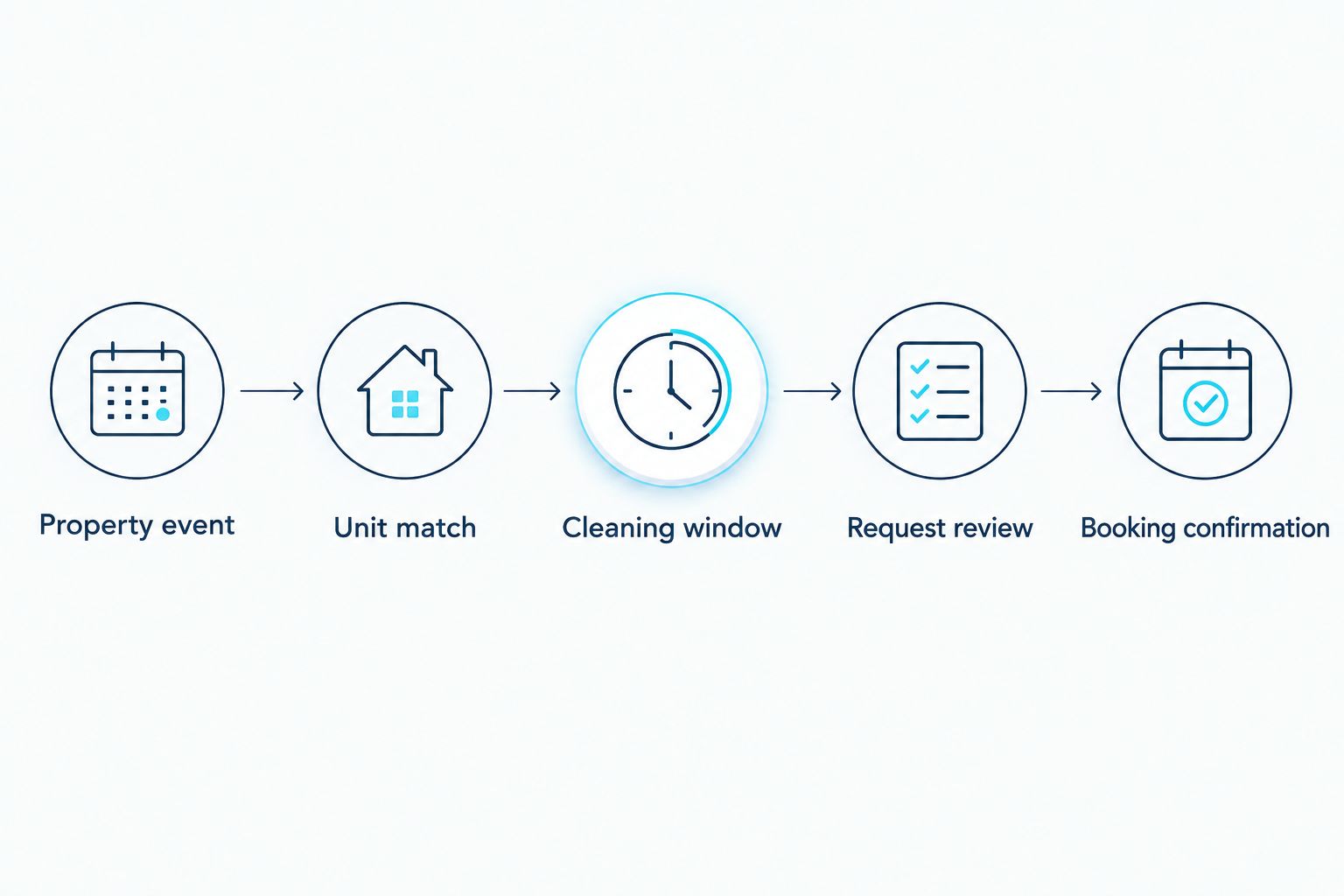
Booking handoff and confirmation
Connect the request to an appointment only after verifying the destination's documented actions. A successful data transfer proves that data moved; it does not prove someone accepted the cleaning visit.
- Choose the supported action. Use a documented request or booking action with authorized access. If none is verified, send the information to the responsible coordinator for online booking instead.
- Check for an existing request. Match the source event identifier against your request records before creating anything. Save the destination record identifier after a successful submission.
- Separate request states. Maintain distinct internal states for awaiting review, submitted, confirmed, canceled, and failed. These are workflow definitions to implement, not claimed BookingKoala interface labels.
- Require confirmation evidence. Mark a visit confirmed only after the booking destination or responsible coordinator supplies an actual appointment confirmation.
- Send a useful summary. Notify the responsible manager with the unit, appointment details, current state, and any unresolved issue. Keep access credentials out of general notifications.
Expected result: Every source event has a traceable handoff and an honest status. Failed submissions remain visible, and unconfirmed requests do not appear as booked cleaning visits.
For Porch and Parlor Cleaning, the confirmed service fact is online residential cleaning booking. Verify the suitability of each home's location and requested work through the booking process before making it part of a multi-unit workflow.
Pilot checks and release controls
Test changes as carefully as new requests. The happy path is only part of the job; a canceled move-out should not leave a forgotten cleaning request behind.
- Run 3 test events. Create a test request, change its cleaning window, and cancel it. Use test records or a supervised setup that cannot accidentally commission real work.
- Compare 2 systems. Check the original property record against the request or booking record. Verify the unit, local date, time, scope, and status after each action.
- Repeat an event. Resend the same test event and confirm that your matching rule prevents a second request. Test the workflow's behavior rather than assuming the connector handles duplicates.
- Simulate a failed handoff. Confirm that an unsuccessful submission reaches an accountable person and remains available for review. Do not mark it confirmed because the source event was processed.
- Release gradually. Add units only after the pilot passes. Record the configuration owner, tested behaviors, and review date in your 2026 operating notes.
Expected result: You have evidence that creation, changes, cancellations, duplicates, and failures follow your rules. Expand the workflow only after those checks pass.
Update cleaning requests when property dates change
A second useful workflow handles changed departure dates or move-out plans. Use it alongside request creation so your cleaning schedule does not become a snapshot of yesterday's plans.
Match the changed property event to its existing request using the saved source identifier. Then compare the old and new cleaning windows before taking action.
- Unsubmitted request: Revise the draft and return it for review.
- Submitted request: Use a documented update action or have the coordinator communicate the change through the booking process.
- Confirmed appointment: Request a change and retain the existing confirmation status until the revised arrangement is acknowledged.
- Canceled property event: Initiate the supported cancellation process and record its outcome separately from the property cancellation.
A changed property date is not a confirmed appointment change. Keep the mismatch visible until someone resolves it.
For recurring occupied-home cleaning, use the agreed cleaning cadence as the source instead of a departure event. Apply the same unit matching, permission checks, duplicate prevention, and confirmation rules.
Troubleshooting
The same unit gets duplicate requests
Check whether your workflow matches by source event identifier or creates a new request every time it receives an event. Store the original identifier with the destination record, then look it up before submitting again. Inspect retries as well as ordinary updates.
The cleaning date shifts unexpectedly
Compare the original timestamp, its time zone, and the converted local appointment time. Check whether a date-only event has been treated as a midnight timestamp. Preserve date-only values as dates until your workflow deliberately assigns a cleaning window.
The wrong apartment appears on the request
Inspect the unit mapping for missing apartment information or reused display names. Require an exact stable-unit match and a complete service address. Stop unmatched records instead of letting the workflow pick the closest-looking address.
A property cancellation leaves cleaning on the schedule
Check whether the connection handles cancellation events and whether it saved the destination record identifier. Route unsupported cancellation actions to the coordinator. Record the booking-side outcome; deleting the property event alone is not enough.
The request exists, but nobody confirmed the visit
Inspect the handoff status and confirmation requirement. A created task, sent message, or imported calendar entry is not appointment acceptance. Assign the unresolved request to the booking coordinator and keep it out of the confirmed schedule.
Customize your workflow
Once the 2026 pilot works, expand by cleaning need rather than copying one rule to every unit. A vacant turnover, a resident's recurring visit, and cleaning before new occupants arrive need different scope and access decisions.
Build separate request templates while keeping the same matching and confirmation rules. For a cadence-based workflow, use the guide to setting up recurring house cleaning to organize the service side before connecting the schedule.
Give one person ownership of exceptions. Automation can route a problem, but it cannot settle an unclear permission, an unsuitable cleaning window, or a request the provider has not accepted.
FAQ
How do I connect property management software to a cleaning schedule?
Connect an eligible property event to a unit-matched cleaning request through a documented integration or a manual approval handoff. Track submission separately from provider confirmation so a request never masquerades as a booked visit.
Can I connect my property management software directly to BookingKoala?
Use a direct connection only when documentation for your specific accounts confirms the required actions and permissions. Porch and Parlor Cleaning uses a BookingKoala-powered booking site, but online booking alone does not establish an integration capability.
What's the best connection method for multiple rental units?
The best method is the simplest documented route that supports your required request, update, and cancellation actions. If automated booking is unverified, use a manual approval handoff while maintaining stable unit identifiers and request tracking.
Does syncing a calendar automatically book a cleaner?
No, a calendar sync does not by itself establish a confirmed cleaning appointment. Require booking confirmation from the destination or responsible coordinator before marking the visit confirmed.
How do I stop duplicate cleaning requests?
Match each request to its original property event identifier and check for an existing destination record before creating another. Test repeated events and retries during your pilot.
What happens when a tenant changes their move-out date?
Update the existing cleaning request rather than creating a new one. For a confirmed visit, request a schedule change and keep the mismatch visible until the revised appointment is acknowledged.
What information should I send with a cleaning request?
Send the stable unit identifier, full address, cleaning window, requested scope, and authorized contact. Keep sensitive entry details in an access-controlled channel rather than a broadly shared calendar.
One last thing
Add an exception report before you add more units. Review unconfirmed requests, rejected changes, unmatched addresses, and unresolved cancellations together. That report shows where the schedule needs attention without asking you to inspect every property record.
A clean calendar should describe reality, not wishful thinking. Make confirmation the gate that turns a request into an appointment.