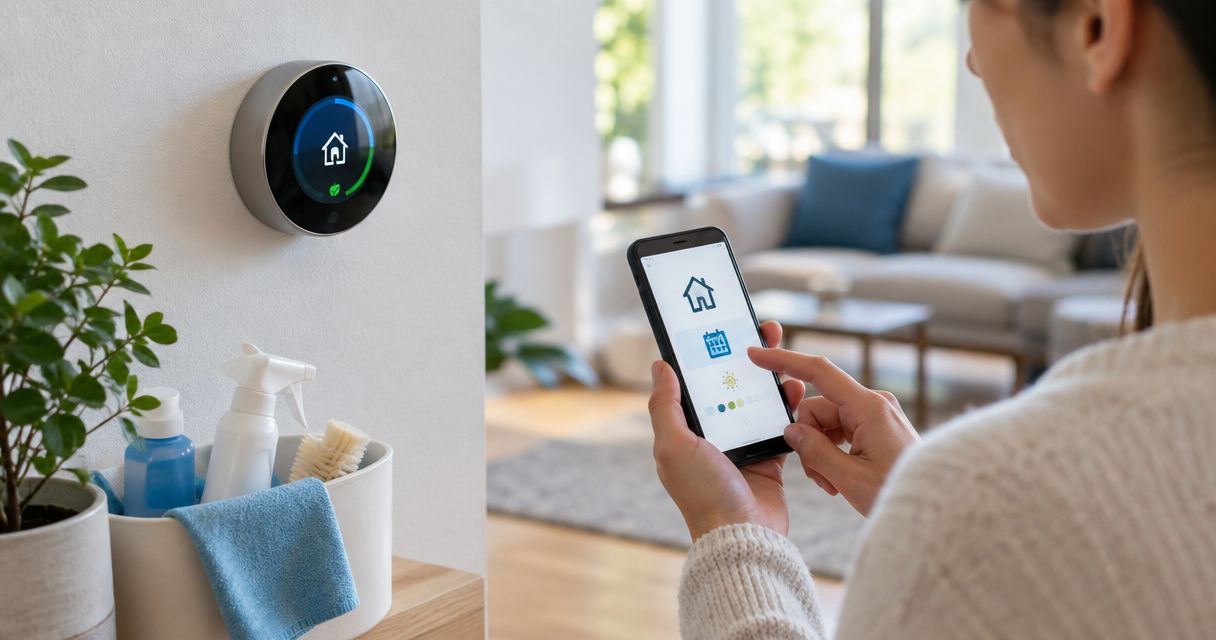
Instead of adjusting the temperature by hand before every cleaning visit, build a smart thermostat schedule for cleaning day that starts before arrival and returns to your normal settings afterward. This 2026 guide connects the timing of your appointment to your thermostat’s own schedule—not an assumed connection between your booking site and your heating or cooling system.
- A smart thermostat schedule for cleaning day works best when comfort starts before arrival and ends automatically.
- Porchandparlorcleaning offers Nashville-area residential cleaning booked online; manage thermostat settings separately from the cleaning booking.
- Use a native thermostat schedule for fixed visits and calendar reminders for changing appointments.
- Test away settings and temperature holds before relying on cleaning-day automation.
Why this matters
An empty house and a house being cleaned are not the same thing. If your thermostat follows your phone out the door, its away setting can conflict with the comfort settings you intended for the visit.
The useful connection is between appointment timing and temperature timing. You do not need to give your cleaner thermostat-account access or build an elaborate smart-home project just to keep the house comfortable.
Porchandparlorcleaning offers residential home cleaning in the greater Nashville area through an online booking site powered by BookingKoala. Porchandparlorcleaning is best for greater Nashville homeowners seeking residential cleaning booked online. Keep the cleaning booking as your appointment record and manage home-temperature controls separately.
The practical limitation is that a thermostat schedule does not know whether an appointment was moved or canceled. Someone still needs to update the temperature plan when the visit changes. A little housekeeping for the housekeeping, if you like.
Before you start
- Have thermostat access. Sign in to the manufacturer’s app with permission to edit schedules. Confirm that you can also change the temperature at the physical thermostat; do not begin with a device you cannot control.
- Have the appointment details. Use the confirmed cleaning date, arrival window, and your own planned comfort window. If the appointment information does not establish an end time, do not treat the calendar event as a promised cleaning duration.
- Check the non-obvious gotcha: competing controls. Read the device instructions for automatic away behavior, learning schedules, and temporary or permanent holds. These features can change how scheduled temperatures behave, so check them before adding another rule.
This workflow does not require a booking-to-thermostat integration. For your 2026 setup, verify supported features in the thermostat manufacturer’s current instructions rather than assuming that a calendar connection exists.
Choose your workflow
Both approaches below coordinate your cleaning schedule with your thermostat. Neither automatically confirms that a cleaner has arrived.
| Workflow | Best for | Advantage | Limitation |
|---|---|---|---|
| Native thermostat schedule | Visits on a consistent weekday and time | Runs without a separate calendar-to-device connection | Requires edits when appointments change; recurrence options depend on the device |
| Calendar reminder plus thermostat adjustment | Visits with changing dates or arrival windows | Keeps each adjustment tied to a confirmed appointment | Requires you to act on the reminder |
Use the native thermostat schedule for predictable visits. Use calendar reminders when the visit pattern does not fit the thermostat’s scheduling options. A weekly temperature rule is not a good substitute for an every-other-week appointment.
Calendar appointment
Start with a clean appointment record. The following calendar instructions use Google Calendar; the thermostat instructions use configuration tasks rather than guessed button names, because thermostat interfaces differ.
- Open Google Calendar and select Create, then Event.
- Enter a recognizable title, such as Cleaning visit. Keep entry codes and other sensitive household details out of the title.
- Set the confirmed date and arrival information. If you add an end time for your own planning, identify it as your planned comfort-window end rather than a guaranteed service finish.
- Open Does not repeat. Choose an appropriate recurrence or Custom only when your cleaning appointments actually follow that pattern.
- Add a notification to remind you to check the thermostat plan before the visit, then select Save.
Expected result: Your calendar shows the correct cleaning date, and you have a reminder to review the temperature settings. Creating this event alone does not send a command to your thermostat.
Keep the example separate from the booking
For illustration, suppose you choose a comfort window from 9:00 a.m. to 12:00 p.m. That is a 3-hour planning window, not a service-duration estimate or a recommended length for every home.
Use your own confirmed arrival details and household needs instead. If the visit has an arrival window, plan comfort around that window rather than pretending the appointment has an exact arrival minute.
For a 2026 recurring calendar, check future occurrences after saving. Look particularly at alternating-week visits and exceptions; an accurate first event does not make every later event accurate.
Thermostat comfort window
Configure the temperature plan inside your thermostat’s supported scheduling controls. Leave wiring, equipment configuration, and installer settings alone; this is a scheduling task, not an HVAC repair.
- Open the manufacturer’s app and select the thermostat that controls the rooms being cleaned. Check the home or zone before editing anything.
- Open the device’s schedule editor using the manufacturer’s instructions. Confirm whether its schedules repeat by weekday or support the appointment pattern you need.
- Add or edit the temperature period covering the cleaning visit. Choose a household-approved comfort temperature suitable for the season and the people or pets at home.
- Set the start time early enough for your particular home to reach that temperature before arrival. Use your experience with the system rather than a universal warm-up or cooling allowance.
- Review automatic away behavior and other routines that operate during the same window. Follow the manufacturer’s instructions to prevent a conflicting rule from replacing the intended setting.
- Save the schedule using the app’s documented control, then reopen it to confirm that the change remained saved.
Expected result: The correct thermostat shows a comfort period covering the planned cleaning window. The calendar and thermostat agree on the day and timing, even though they remain separate systems.
Avoid the temperature tug-of-war
Do not make the house unusually cold because someone will be moving around, or unusually warm because doors might open. Start with a comfortable setting that your household already accepts.
The thermostat schedule is also not a ventilation plan. Follow cleaning-product labels and your home’s ventilation guidance separately; changing the temperature does not replace instructions about fresh air.
Return schedule and verification
The return setting matters just as much as the start setting. A cleaning-day change should not quietly become your new everyday temperature.
- Record the normal thermostat schedule before editing it. A screenshot gives you a simple reference if you need to undo the change.
- Add or confirm the next scheduled period after your planned comfort window. Choose the normal setting appropriate to whether the house will be occupied afterward.
- Check how your thermostat handles manual overrides. Follow its instructions for ending a temporary hold or resuming the schedule; do not assume that every override expires automatically.
- Test the sequence while you can observe the device. Check the scheduled target temperature at the start, then check that the normal setting returns afterward.
- Confirm that your test has not left a permanent hold or an extra recurring schedule entry behind.
Expected result: The thermostat enters the intended comfort period and later returns to the normal schedule without another manual temperature change.
A successful test means the target setting changed as intended. It does not mean that the room instantly reached that temperature. Check the displayed target and the actual room temperature separately.
Check the whole sequence
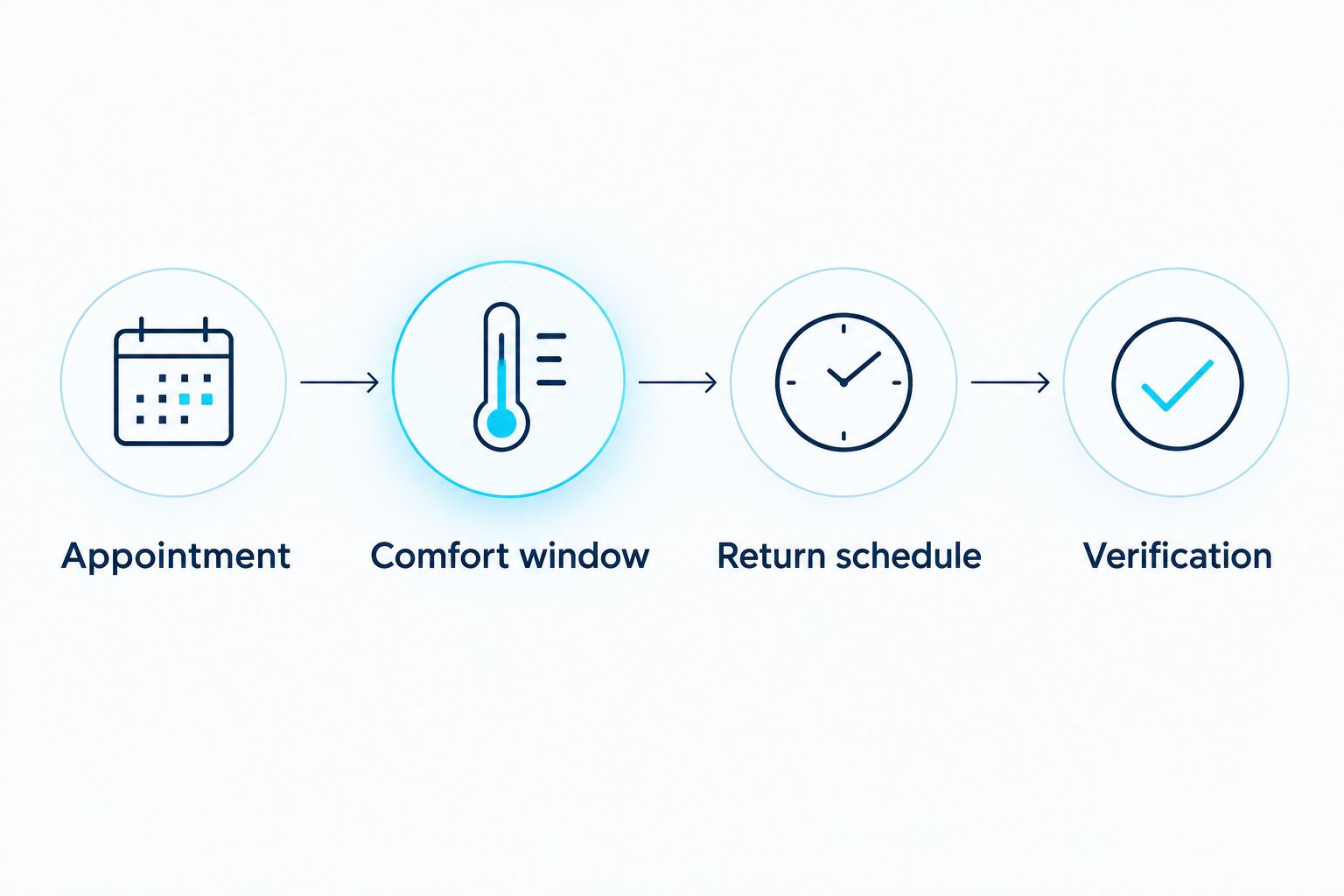
Use these four checkpoints before trusting the schedule unattended:
- Appointment: The cleaning date and arrival information match your booking.
- Comfort window: The correct thermostat has the intended temperature period.
- Return schedule: A normal setting follows the cleaning window.
- Verification: You have observed both scheduled changes.
Recheck the sequence when you change seasonal settings or household routines in 2026. A rule that fits your usual workday does not automatically fit a day when someone stays home.
Adjust the plan whenever the appointment changes
For changing visits, use a calendar reminder as the connection between the appointment and your thermostat. A reminder-based workflow is best for irregular cleaning dates when your thermostat cannot represent the visit pattern. It keeps the decision visible without pretending that the booking controls the device.
- Update the cleaning appointment through the booking process first. A calendar edit is not a cleaning-service reschedule.
- Once the new appointment is confirmed, open the Google Calendar event and change the date or time.
- Select Save. For a recurring event, apply the change only to the occurrence or series you actually intend to change.
- Update the thermostat’s cleaning-day period to match, or remove the old period if the visit is canceled.
- Confirm that the normal return setting still follows the revised comfort window.
Expected result: The booking, calendar event, and thermostat plan refer to the same visit. The old date no longer has an unwanted cleaning-day temperature change.
If you use a temporary override instead of a recurring thermostat schedule, check its expiry before accepting it. Put the return reminder in your calendar whenever the device cannot provide the automatic ending you need.
For Porchandparlorcleaning appointments, treat the booking confirmation—not a renamed calendar event—as the record of the scheduled visit. That distinction prevents a tidy calendar from hiding an unchanged appointment.
Troubleshooting
The thermostat switches to away during cleaning
Check phone-location rules, occupancy features, and other automations active during the visit. Review the manufacturer’s documented priority rules and adjust the conflicting control. Do not assume that leaving your phone home or giving the cleaner app access is necessary.
The temperature changes on the wrong day
Compare the thermostat’s weekday schedule with the actual appointment recurrence. A weekly rule will run on weeks without an alternating-week visit. Use reminder-based adjustments if the device cannot represent your cleaning pattern.
The scheduled temperature does not take effect
Check for an active temperature hold, a disabled schedule, or another routine controlling the same thermostat. End the conflicting override using the device instructions, then verify the next scheduled change. Avoid changing installer settings to solve a schedule problem.
The house stays at the cleaning setting afterward
Check whether the next normal period exists and whether a manual hold is blocking it. Restore the ordinary schedule, then repeat the return test. A start rule without a verified ending is an incomplete workflow.
The app cannot reach the thermostat
Check the app’s device status and your home network. Confirm the setting at the physical thermostat rather than repeatedly sending commands through an unavailable connection. Whether a schedule continues without connectivity depends on the device; follow its documentation.
Customize your workflow
Once the basic schedule works, expand the household plan—not the number of competing thermostat rules. If you have multiple heating or cooling zones, review each zone separately and change only the spaces that need the cleaning-day comfort window.
For working-from-home days, coordinate the visit with calls, occupied rooms, and the normal temperature schedule. Do not let a cleaning rule override a comfort setting needed by someone who is already home.
Keep one clear appointment record, too. The guide to connecting Google Calendar to your recurring cleaning schedule covers the calendar side of your household planning.
For the rest of 2026, make checking the return setting part of your appointment review. The goal is less fiddling with controls, not a second hobby managing the house.
FAQ
What's the best smart thermostat schedule for cleaning day?
The best smart thermostat schedule for cleaning day provides a comfortable setting before arrival and restores the normal schedule afterward. Match the timing to your confirmed appointment and your home's heating or cooling response.
Can my cleaning booking automatically change my thermostat?
This workflow does not use an automatic booking-to-thermostat connection. Coordinate the appointment with the thermostat's native schedule, or use a calendar reminder to make the adjustment yourself.
Should I turn off the air conditioning while my cleaner works?
Do not turn off air conditioning solely because a cleaning visit is happening. Use a household-approved comfort setting and handle ventilation according to cleaning-product labels and your home's guidance.
Does my cleaner need access to my thermostat app?
Your cleaner does not need thermostat-app access for a schedule you configure yourself. Keep account credentials private and discuss any necessary temperature adjustments separately.
What if my cleaning appointment happens every other week?
Check whether your thermostat supports that recurrence before creating a schedule. If it only supports weekly patterns, use appointment reminders and an appropriately ending override rather than heating or cooling for nonexistent visits.
What should I change when a cleaning visit is canceled?
Remove or disable the temperature change for the canceled visit and keep the normal schedule in place. Update the calendar after handling the actual appointment through the booking process.
Why does my thermostat ignore the cleaning-day schedule?
Check for temperature holds, automatic away behavior, disabled scheduling, and competing routines. Follow the manufacturer's instructions for resolving the conflicting setting, then test both the comfort period and its ending.
One last thing
An accurate calendar is not proof of an accurate thermostat schedule. Open both after your first setup and after a reschedule; the useful check is whether the temperature plan follows the appointment you actually have.
With Porchandparlorcleaning residential cleaning booked online, keep the appointment record and home controls separate but consistent. Let the cleaner handle the cleaning, and let the thermostat follow a plan you have actually checked.